


Is BitLocker Encryption Enough Before Disposing of a Business Laptop?
Your old laptops have BitLocker switched on, so handing them over for disposal feels safe. Plenty of IT managers think the same, and they are half right. So, is BitLocker enough before laptop disposal? On its own, no. Encryption locks the data but doesn’t remove it, and that lock depends on keys, settings and hardware you may stop controlling the day the laptop leaves.
This guide shows where BitLocker falls short, what has to happen to the drive, and a simple process for retiring devices without leaving client or staff data behind.
What BitLocker Protects and Where It Stops
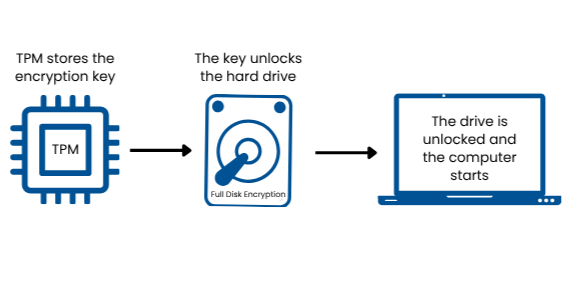
BitLocker is Microsoft’s full disk encryption feature for Windows. It scrambles everything on the drive, and the laptop unlocks that data at start-up using a key held in the TPM (the Trusted Platform Module, a security chip on the motherboard), a PIN or a recovery key. If someone steals a powered-off laptop and pulls the drive, they can’t read it without that key. Every business laptop should have this protection.
The trouble starts at device retirement. BitLocker keeps data away from people who lack the key, but the files stay on the drive, waiting for the right key to turn up. Your disposal plan has to cover every place that key might sit.
Why Encryption Alone Falls Short at Device Retirement
Three weak spots show up again and again when businesses retire laptops.
Recovery keys outlive the laptop
Recovery keys often live in Microsoft Entra ID, Active Directory, a password manager or on a printout in a drawer. Some end up in a personal Microsoft account because a user signed in on a laptop that sat outside company management. Those copies stay put after the hardware leaves. Anyone who later gets hold of the drive and a matching key can read it. Good key management means knowing where every key lives, and across a few hundred devices that takes a proper asset register.
TPM-only set-ups and suspended protection
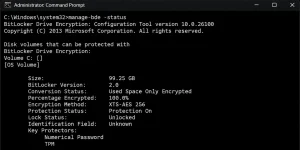
Most business laptops run BitLocker in TPM-only mode, which unlocks the drive at start-up without a PIN. The Windows sign-in screen then becomes the main barrier, and security researchers have demonstrated attacks against some TPM-only configurations. Suspended protection carries a bigger risk. Admins often suspend BitLocker during firmware updates, and if nobody resumes it, the key sits unprotected on the drive. Checking the encryption status takes seconds with manage-bde -status in an administrator Command Prompt.
Used-space-only encryption and leftover data
Windows can encrypt only the used part of a drive. That is quick and works well on a brand-new disk. On a laptop that held unencrypted data first, deleted files can linger in free space that never got encrypted, and forensic tools can sometimes pull them back. This data recovery risk stays invisible in the Windows interface, so it slips past many audits.
BitLocker Data Destruction: What Removes the Data for Good
BitLocker data destruction starts with one distinction: encryption and destruction do different jobs. Encryption makes data unreadable to anyone without a key. Sanitisation makes it unrecoverable, whoever holds a key. For disposal you need the second one. The NCSC’s guidance on secure sanitisation of storage media and NIST’s SP 800-88 standard both set out methods for retired media, and both treat the work as a process rather than a single switch.
Secure erase
Secure erase tells the drive itself to wipe its contents, which is far more reliable than overwriting files from within Windows. SSDs widen that gap. Wear levelling spreads writes across hidden memory cells, so a software overwrite can miss data in areas the operating system never sees. Firmware commands such as ATA Secure Erase and NVMe Sanitize reach those cells. Our guide to SSD wiping and sanitisation covers the options in more detail.
Cryptographic erase, which destroys the encryption key, is a recognised technique too. It works only when encryption covered the whole drive from day one and every copy of the key is gone. Most businesses can’t prove both, so they pair it with a verified erase.

Physical destruction
Some drives can’t be erased. Failed SSDs, drives that won’t respond and devices holding sensitive records all fall into this group. A specialist shreds or crushes the storage and logs each serial number against a destruction certificate. If you would rather not decide drive by drive, secure laptop data destruction through a specialist covers both routes: erasure for kit you plan to reuse and shredding for the rest.
Encrypted Laptop Recycling: Why Wiping Still Matters
Encrypted laptop recycling follows the same rule as any other disposal route. Recyclers process WEEE (waste electrical and electronic equipment) whether or not the drive is encrypted, so nothing in the recycling chain removes your data for you. Once the laptop leaves, you lose sight of who handles it. Not every recycler vets staff, tracks serial numbers or destroys drives on site. Wiping first, or using a supplier that sanitises under a documented process, keeps the decision with you. A secure business laptop disposal service ties collection, erasure and certification together, which gives you the paper trail an auditor will ask for.
What to Ask a Disposal Supplier
A supplier’s process matters as much as the drive’s settings. Ask who collects the devices and how the chain of custody is recorded from your door to the final step. Ask which erase method applies to each drive type, and what happens to drives that fail erasure. Ask whether you receive a certificate listing every serial number, rather than a single note for the whole batch. Last, ask whether destruction happens on site or at a facility you can audit. A vague answer to any of the four is a warning sign.
How to Remove Data Before Laptop Disposal: A Practical Checklist
Follow these steps to remove data before laptop disposal without leaving gaps. They work for one laptop or a hundred, and our guide on how to dispose of business laptops securely gives the full walkthrough.
-
- Log the asset. Record the serial number, owner and drive type (HDD, SATA SSD or NVMe).
- Back up what the business still needs. Test a restore before you touch the drive.
- Check the encryption status. Note whether protection is on and whether the drive uses full or used-space-only encryption.
- Record where the recovery key lives. Keep that record until the destruction certificate arrives, then delete the keys under your retention policy.
- Sanitise or destroy the drive. Use firmware secure erase for reusable drives and physical destruction for faulty or high-risk ones.
- Remove it from management. Take the device out of Entra ID, Intune or Active Directory, and from your asset and licence trackers.
- File the certificate. Match it to the serial numbers from step one.
What UK Data Protection Rules Expect
UK GDPR requires you to keep personal data secure for as long as you hold it, and that includes the day a device is retired. The ICO treats encryption as good practice, but a documented process with certificates shows you took appropriate measures if something goes wrong later. When you dispose of an encrypted laptop, treat the encryption as the first control and verified sanitisation as the second.
Frequently Asked Questions
Can encrypted laptops be recycled without wiping?
Yes, but you shouldn’t. Encryption protects data only while the key stays secret, and recyclers don’t remove data as part of recycling. Sanitise or destroy the drive first and keep the certificate.
What happens to BitLocker keys when a laptop is disposed of?
Nothing happens to them unless you act. Recovery keys stay in Entra ID, Active Directory or wherever else they were saved until someone deletes them. Track each key against the asset record, then remove it under your retention policy once you hold the destruction certificate.
Should an encrypted drive still be sanitised?
Yes. Encryption hides the data and sanitisation removes it. Keys can leak, protection can sit suspended and free space can hold old files, so a verified secure erase or physical destruction gives you a result you can prove.
How do I check BitLocker encryption status?
Open Command Prompt as an administrator and run manage-bde -status. Look for Protection Status: Protection On and Conversion Status: Fully Encrypted. Also check whether the output says Used Space Only Encrypted.
Before the Laptop Leaves Your Hands
Is BitLocker enough before laptop disposal? Treat it as the first half of the job. The second half is a verified erase or shredding, a record of where each key lives and a certificate for your files. If you would rather hand that work to specialists, Gigacycle can collect, sanitise and certify your retired devices in one process. Get in touch to plan your next batch.